

A1
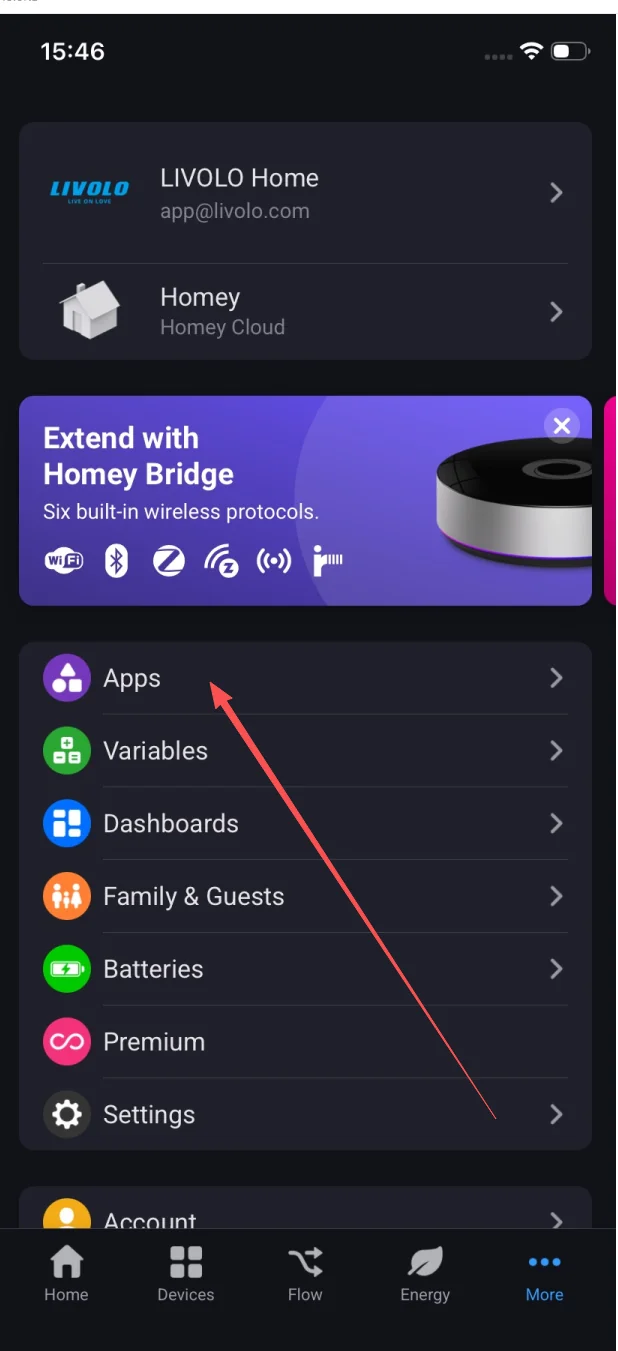
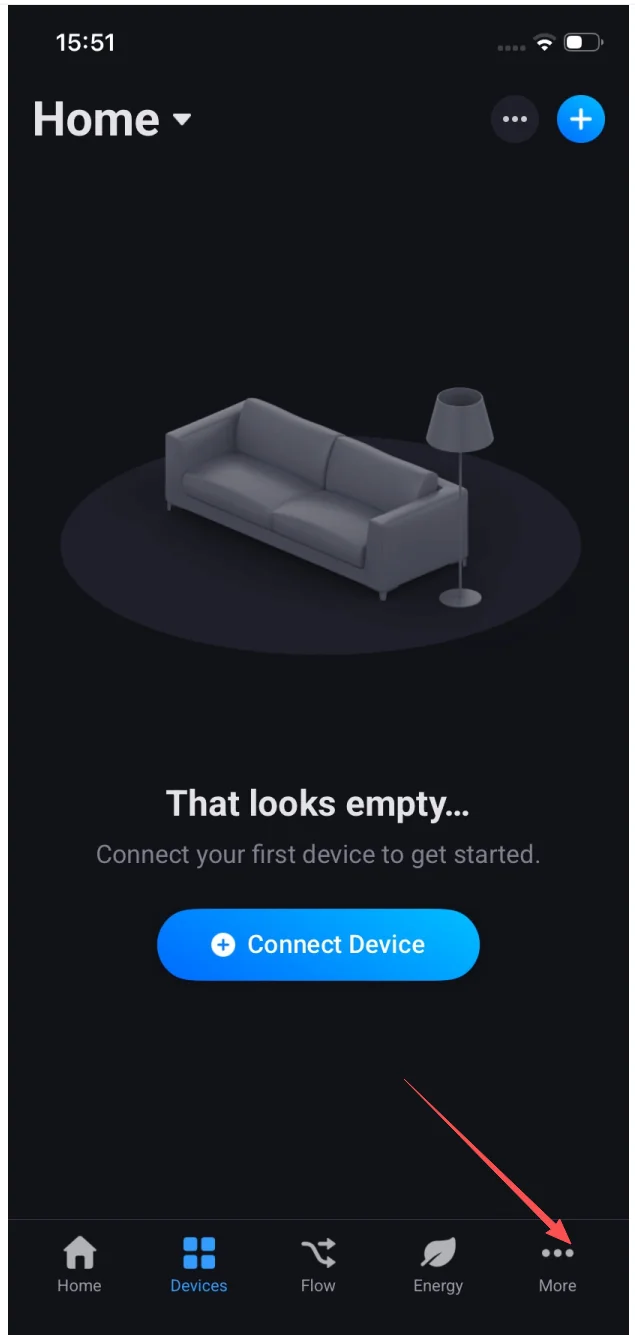
Open Homey and tap More
On an empty Devices tab ("That looks empty…"), tap More in the bottom navigation.
Connect every Livolo smart switch to the voice platform you already use. Step-by-step guides for Amazon Alexa, Google Home, Homey and Yandex Alice — no hub required for Wi-Fi models.
 Homey
Homey
Install the official LIVOLO app on Homey (Pro / Bridge / Cloud) to use every Livolo switch as a native Homey device — inside Flows, energy dashboards, voice control and any third-party Homey integration.
Two stages: install the LIVOLO app from the Homey App Store, then connect your Livolo Cloud account to add devices.
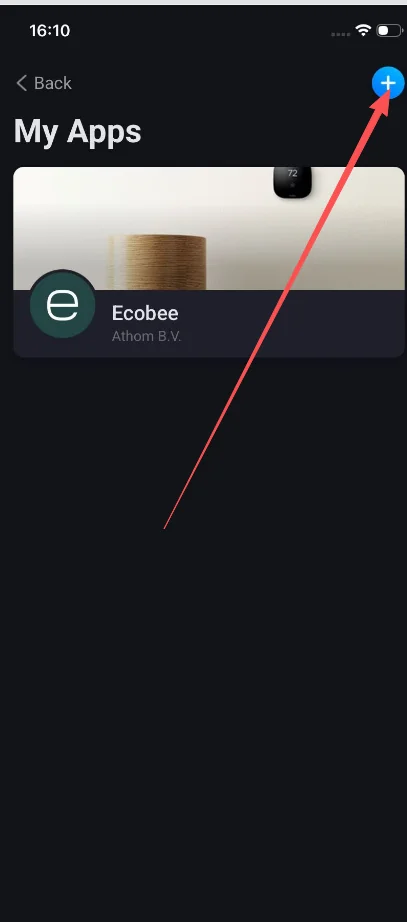
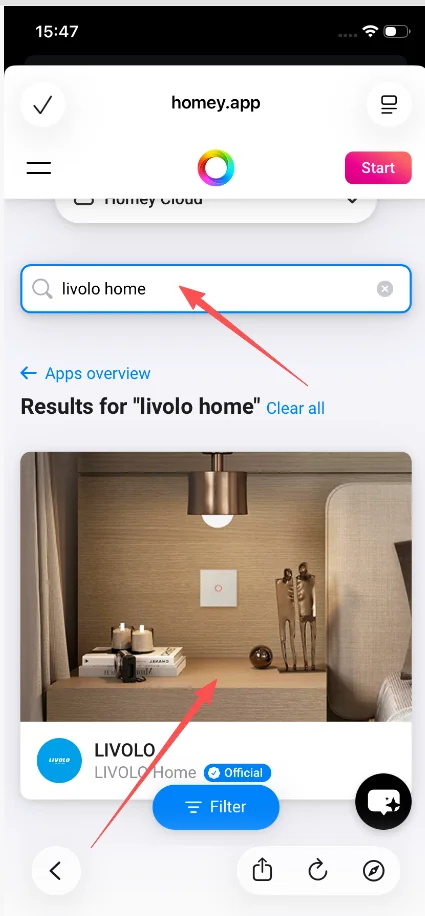
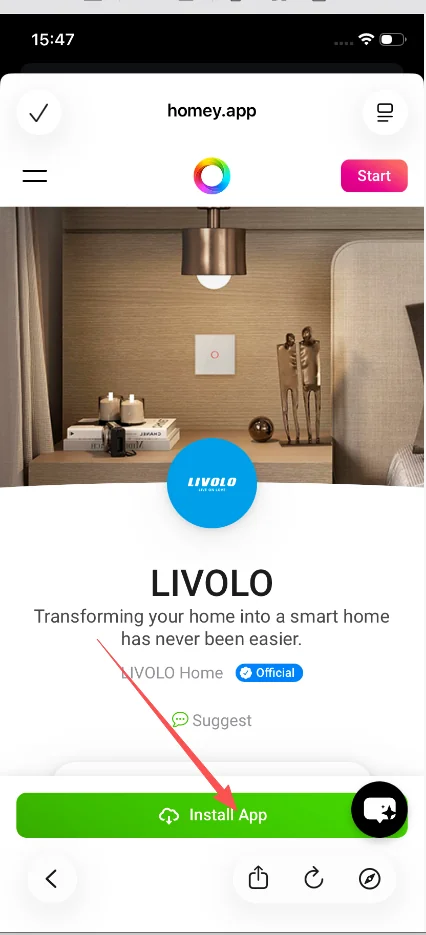
In Homey, go to More → Apps → + → search "livolo home" → pick LIVOLO (Official) → Install App. Sign in with your Athom account.
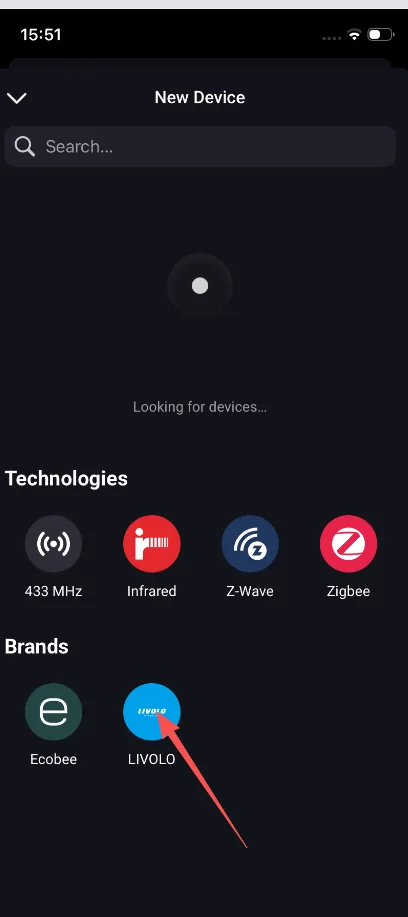
Devices → + → Brands → LIVOLO → pick Livolo Home account → Connect. Sign in to Livolo Cloud with your livolo-app credentials.
Each Livolo switch is now a native Homey device. Use them in Flows alongside Z-Wave, Zigbee, Matter & KNX devices.
The LIVOLO app is cloud-based, so it runs on Homey Pro, Homey Bridge and Homey Cloud. Pair Livolo switches with Z-Wave, Zigbee, Matter, KNX and Wi-Fi devices already on your Homey — they all live in the same Flows.
Best performance for power users — local Z-Wave/Zigbee plus cloud Livolo, all in one Flow.
Compact in-home bridge that runs your Livolo Flows via the Homey Cloud engine.
Cloud-only Homey account — combine Livolo with other cloud-native brands and Flows.
Stage A installs the LIVOLO app on your Homey (signs in with Athom). Stage B connects your Livolo Cloud account so every switch shows up as a native Homey device. Total time: ~5 minutes.
On an empty Devices tab ("That looks empty…"), tap More in the bottom navigation.
From the More menu.
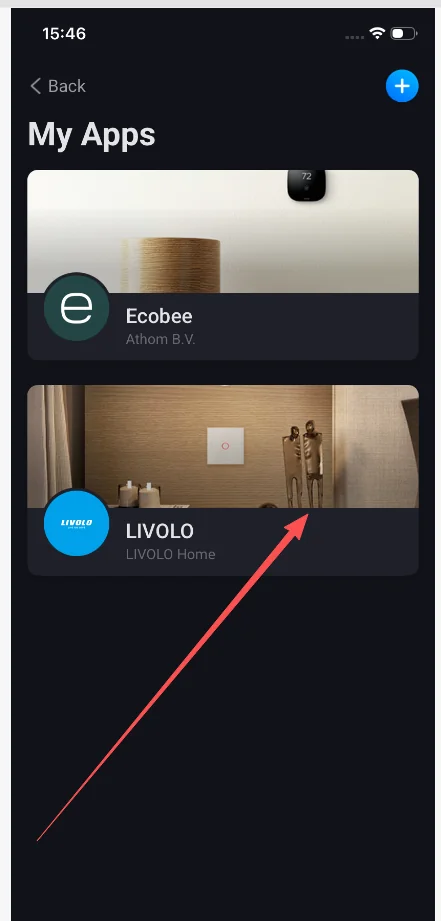
The list shows apps already installed on your Homey (e.g. Ecobee). Tap + in the top-right.
You’ll be taken to the Homey App Store at homey.app. Search livolo home, then tap the LIVOLO result marked Official.
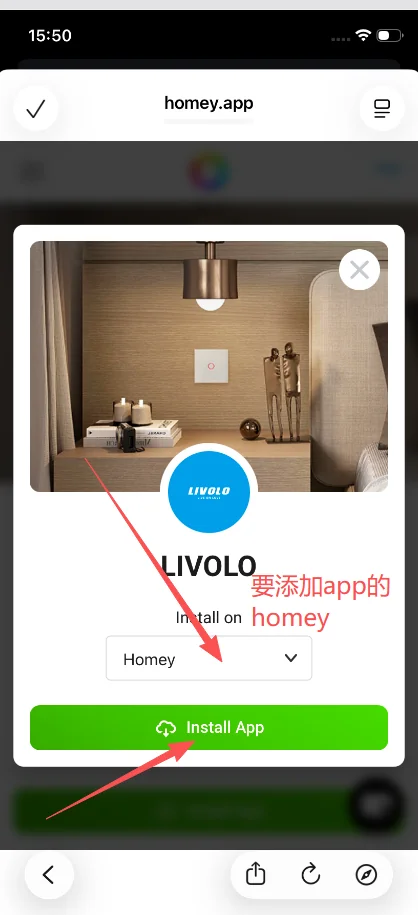
On the LIVOLO app detail page ("Transforming your home into a smart home has never been easier."), tap Install App.
On Install on Homey, pick the target Homey, then tap the green Install App.
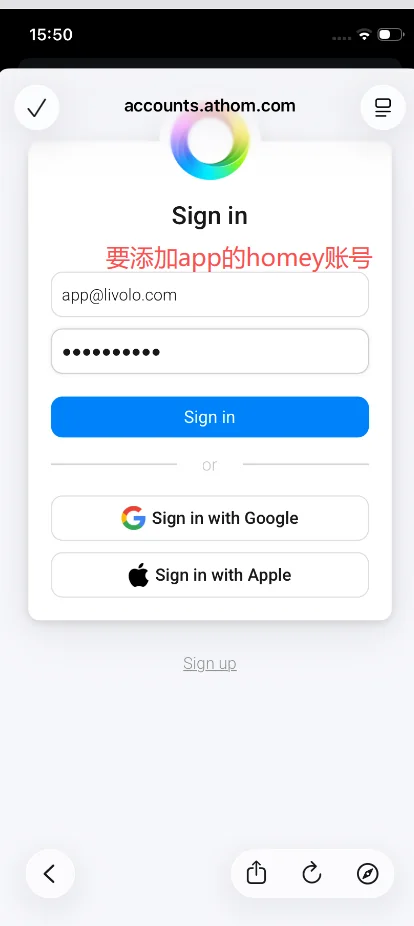
On accounts.athom.com, sign in with the email and password of the Athom account that owns your Homey. ⚠️ This is your Athom / Homey account, not your Livolo account.
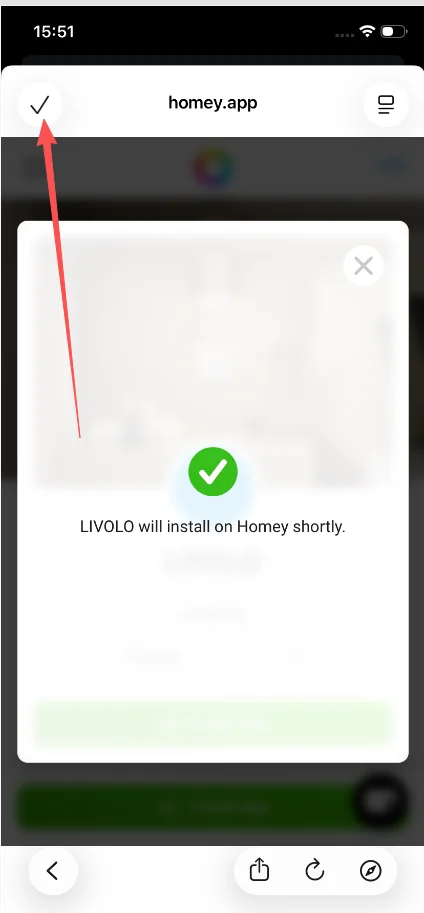
Tap the ✓ in the top-left to finish.
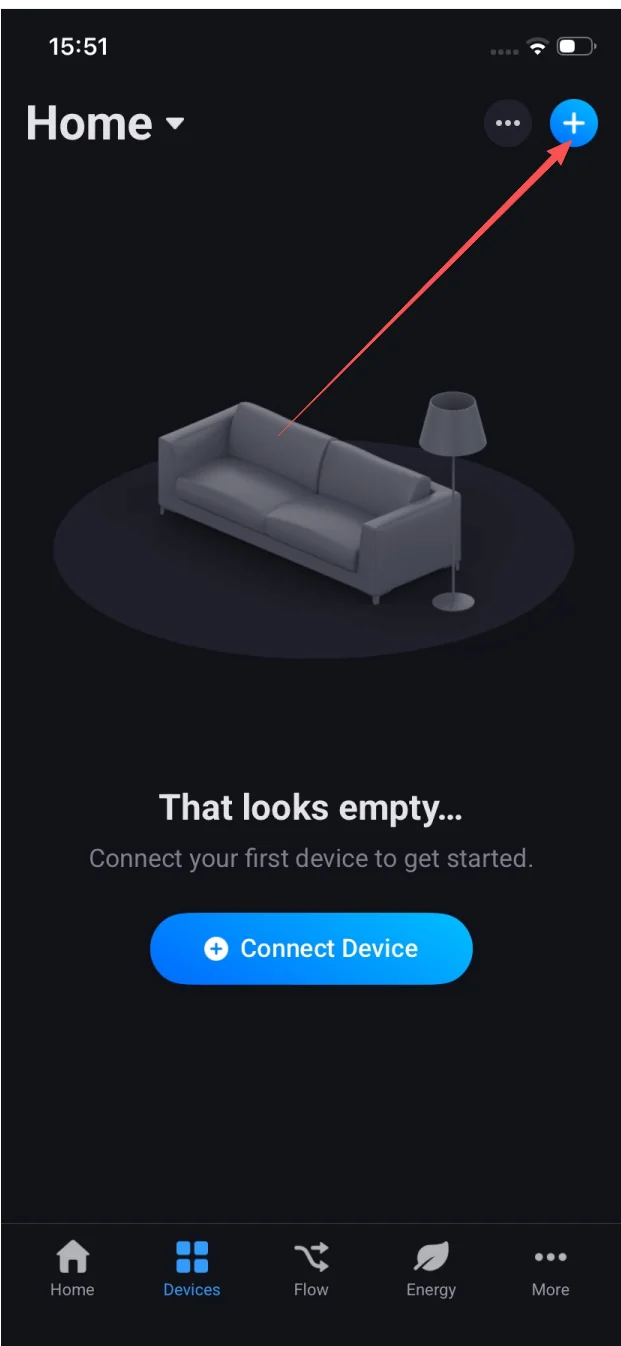
From Devices, tap + in the top-right.
LIVOLO now sits next to your other Homey apps — both paths reach the same New Device flow.
Tap the LIVOLO logo.
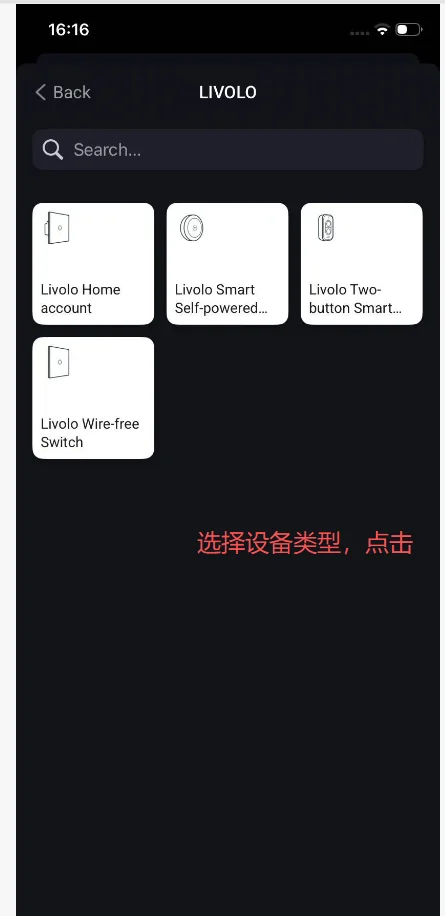
Four connectors: Livolo Home account (recommended — pulls every switch on your Livolo cloud account), Livolo Smart Self-powered, Livolo Two-button Smart, Livolo Wire-free Switch. Pick Livolo Home account for the easiest path.
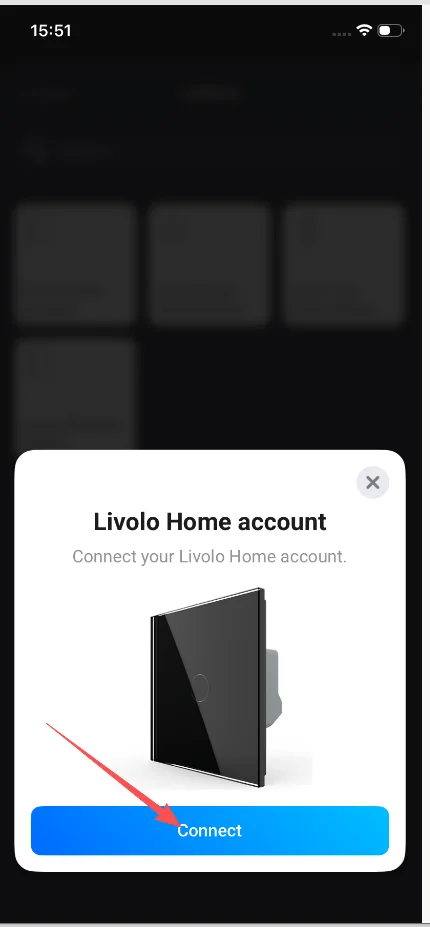
On Livolo Home account → Connect your Livolo Home account.
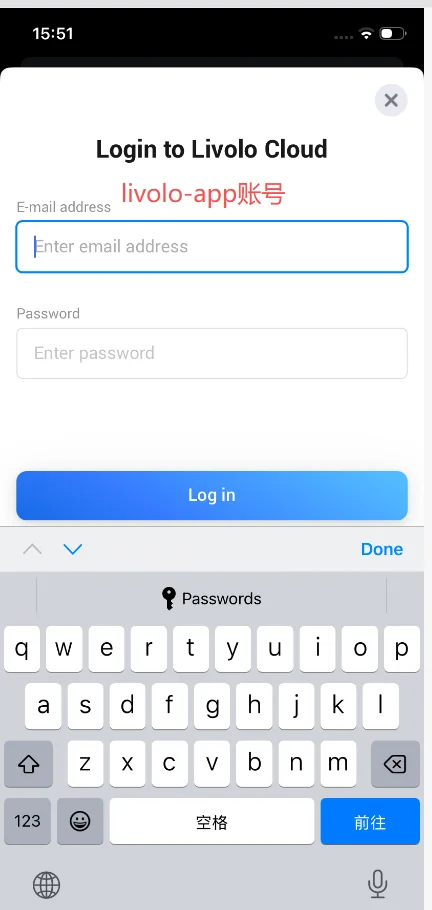
On Login to Livolo Cloud, enter your livolo-app email and password, then Log in.
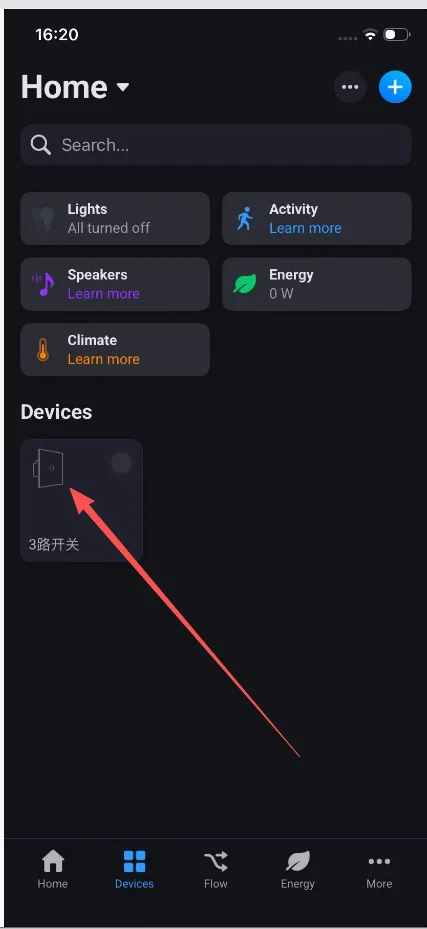
Your Livolo switches (e.g. a 3-gang switch) show up in the Devices section, ready for Flows, dashboards and voice.
Drop Livolo switches into Homey Flows alongside any sensor, schedule, or webhook on your Homey.
Verify the Athom account is the owner of the Homey. Family members without app-install rights can’t complete A7.
Re-open the Livolo Home account device → Repair. Confirm the switches are online in the livolo-app.
Delete the Livolo Home account device in Homey, then redo Stage B with the correct credentials.
The connector talks over the Livolo cloud — a 30–60 s delay is normal. If it persists, reboot the switch and trigger Repair in Homey.
The Livolo Home account connector talks to the Livolo cloud. Local-only support depends on the Livolo product family.
Yes — the LIVOLO app is cloud-based, so it runs on every Homey tier (Pro, Bridge, Cloud).
Yes — physical state changes are reported to Homey and can start Flows.
Absolutely — that’s the main reason to use Homey. All devices live in the same Flows.